
How to decide what to do
Watch the transition on its card. In a growing-up film, this is on "The transitions" screen. In a memories film, it is on the animations screen. Ask yourself what exactly isn't working, because each problem calls for a different action:
What isn't working What helps The motion is unnatural, or the person looks wrong An extra try The photo itself is blurry, dark or the face is hidden A photo swap An important part is cut off at the edge, or the photo is tilted Crop or rotate A big jump between two photos that are far apart Changing the order of the photos 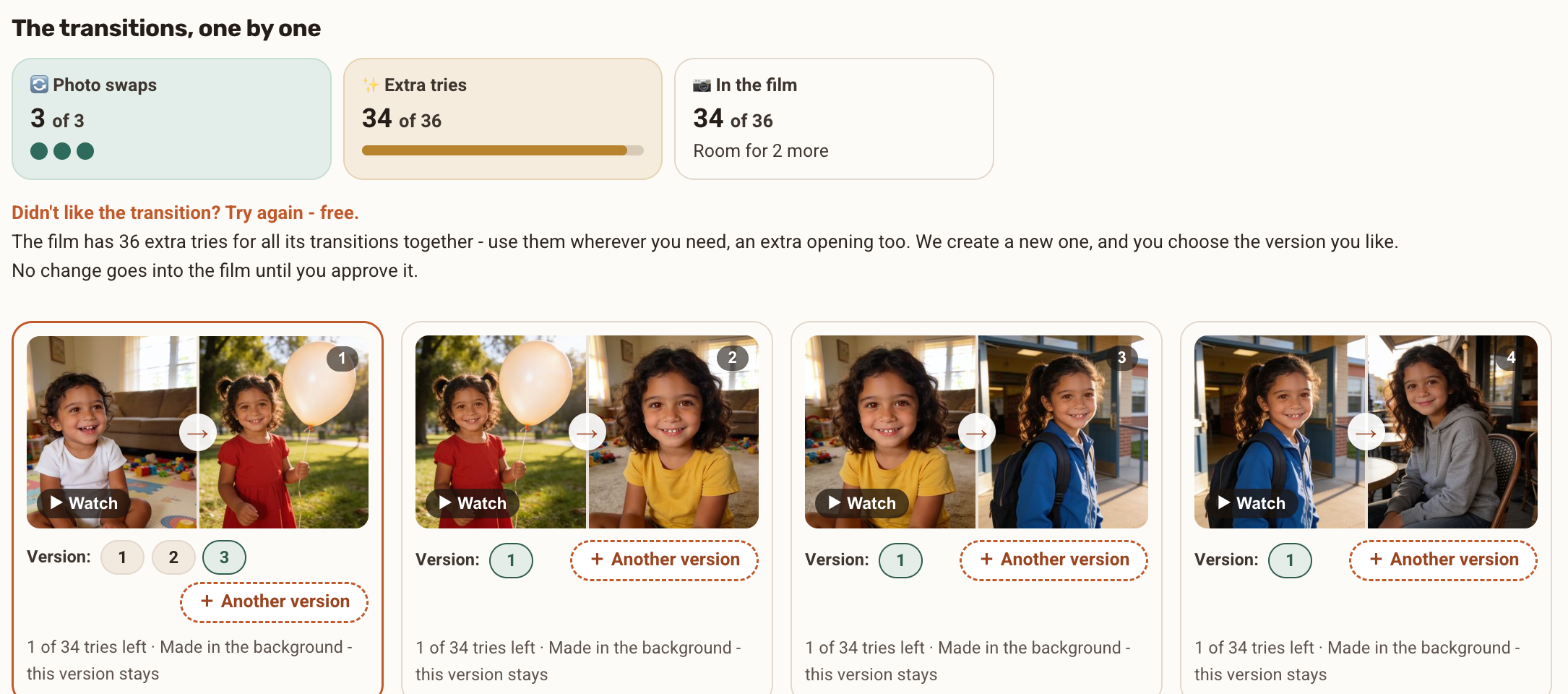
The transitions screen: transition cards with "Another version", the version selector and "Watch" An extra try. On the transition card, click "+ Another version" (in a memories film: "Try another animation"). A new motion is built each time, and you don't have to choose it. Before each new version, a message reminds you how many tries are left, and you can continue or cancel. A version that failed to generate isn't counted.
Every tryA new motion, no need to choose

Earlier versions stay on the card and can be played
Compare the versions. The earlier versions stay on the card and you can play them. Choose the best one. The film doesn't update by itself: the new version is marked as new, and one button updates the film.
If 2 tries didn't help, check the photo. The problem is probably in the photo. On the photos screen, swap it for another photo from the same period. A swap is counted from the package's swaps (2 to 4, depending on size). Deleting a photo is free, but a new photo you add after that counts as a swap.
Crop and rotate. Below each photo on the photos screen there are the buttons "Swap", "Crop" and "Rotate", and also "Earlier" and "Later" for moving it. The trash icon in the corner removes the photo. Rotation is always in multiples of 90 degrees. Crop so that the main person stays in the frame and isn't cut off at the edge.
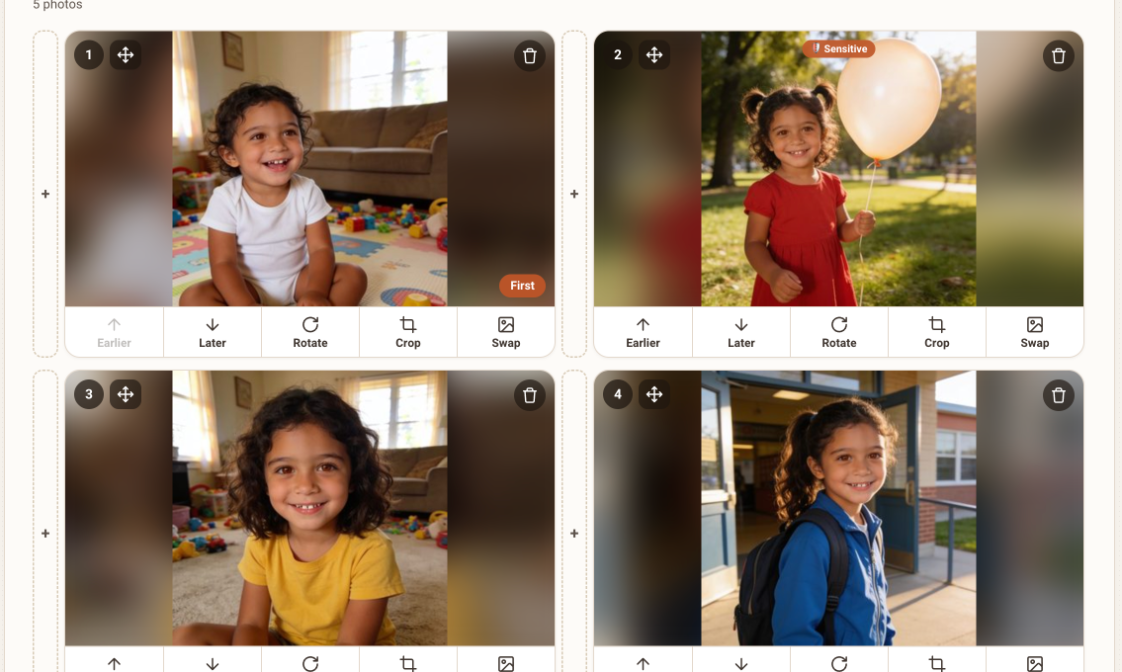
Photo cards with the buttons Earlier, Later, Rotate, Crop and Swap Change the order. If two photos are very far apart in time or mood, move a photo between them or change the order, and check again.
A short example
Say a transition between a baby photo and a toddler photo doesn't look right. First try another version, and watch it next to the first. If the second version isn't good either, look again at the toddler photo: perhaps the face in it is small, or it was taken from far away. Swap it for a close-up from the same period, and create the transition again.
A simple rule to remember: if the photos are sharp and clear, start with an extra try. If they aren't, start with a swap. That way you don't spend tries on a problem that sits in the photo. And if after everything the transition still isn't perfect, that's fine: you can always choose the best version among those that were created.
What to avoid
- Spending all your tries on one transition. They are shared by the whole film, and it is worth saving a few for the end.
- Swapping a photo before you have tried another version, if the photo itself is clear and sharp.
- Expecting faces identical to the photo. We don't promise that, and sometimes there is a small deviation.
- Adding photos beyond the package in order to "solve" a transition. Such a photo stays outside the film and won't help the transition.
Frequently asked questions
How many extra tries are there?
As many as the number of photos in the package, and you can use them on any transition. One transition may get several tries, and another may not need any.
What is the difference between an extra try and a swap?
An extra try builds a new version for the same photo. A swap puts a different photo in its place.
Can I choose which motion is created?
No, the motion is chosen automatically on each try.
Can I get more tries after they run out?
Yes. You can add tries for an additional fee, or upgrade to the next package.